Seven lessons in online safety
Children need to learn how to go online safely. To do this, they need positive input from school AND home.
Jump to:
- start talking now
- do what you want to see
- grow good habits
- control the devices
- control the content
- educate yourself
- get help in an emergency
9-minute read (estimate)
Try listening?!
android: this Microsoft support page tells you how
iphone: this page apple support page tells you how
1: start talking now
Make talking a habit. Children have to be nosy in order to learn. Being nosy can take them to funny and fab places. It can also take them to places that puzzle or upset them. Teach them to talk to you when this happens. Start talking by reading 'Hanni and the Magic Window' with your child. Click on the picture to open the book:
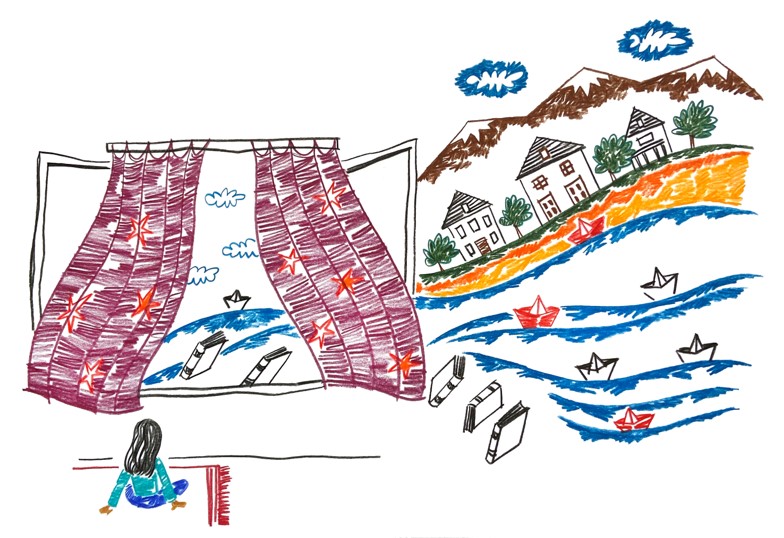
This book is for children aged 3 and older. It shows you how to get help if you see something you don't like. Ami Lockwood and Saba Lasheiei made it for Childnet.
Please read these rules with your child. Answer their questions and help them to understand:
- I only go online with a grown up
- I am kind online
- I keep information about me safe
- I tell a grown up if something online makes me unhappy
Talk about the good online things. Talk about the things to beware of too. Try to balance online and offline life.
2: do what you want to see
You are your child's first teacher. Behave well when you use tech:
- Respect yourself. Respect others. How do you treat people face to face? Do the same online.
- Don't share anyone else's image or details. Ask them. Don't do it if they say "no". It's illegal to share XXXXXXX
- Don’t post negative, threatening, or violent comments about anyone. This includes anyone to do with school.
Change how you use devices now. When your child is older, you won’t have to ask them to do something you don't do yourself. Support them to benefit from the online world in a safe and healthy way.
Use Artificial Intelligence (AI) in a way you want to see others use it. In school, we do these 4 things:
- We think whether it's worth it before we use AI (e.g. the energy it costs and how we lose our own brain power every time we use it).
- When we decide to use AI, we say which one we used and what we did.
- We fact-check the results to make sure information is accurate.
- We feed back to the AI any mistakes we find. This way, it doesn't use our silence as approval.
3. grow healthy habits
Here are 4 tips from Steven Howard, Senior Academic Research Leader in Child Development and Education, University of Oxford. (Read the longer version of this on The Conversation)
1. Choose slower options
Pick slower, educational apps that keep children active. Avoid programmes designed to hook them. Check expert review sites and ratings to find content that fits your child's age.
2. Watch together
Research shows screen time harms drop and benefits rise when adults join in. Co-viewing helps you track what your children see while building shared interests and conversations.
3. Don't Use Screens as distraction tools (often)
Avoid using devices just to quiet children down or beat boredom. Children must face tough emotions in tough places—like restaurants or cars—to learn how to manage them.
4. Build a Routine
Set clear, consistent rules before the screen turns on. Decide when, where, and how long they can play, and what they can choose.
-
Plan the next step: Share what comes after screen time. Use a quick, fun game to bridge the gap (e.g. go through the alphabet; name a food that starts with each letter).
-
Give warnings: Give one or two countdown alerts: "In five minutes we turn this off and go to the park."
-
Pass over control: Let them press the power button or pick the next activity so they feel in control.
Expect some pushback at first. Stick with it, and transitions will get easier.
Ideas families have shared with us:
- Keep devices in shared spaces, e.g. the kitchen or living room
- Agree a number of minutes or hours per day for each online task. When they are a lot older they might do homework on the phone with friends. This builds teamwork skills as well as their support network.
- Agree upfront if they must do chores/homework before the treat of using an electronic device.
- Eat together and ban all phones while you eat
- Use night mode on devices straight after your evening meal
- Manage screen time: try the Forest app or the Flora app . Read about this on the Internet Matters website.
- Put all devices to bed in a box. Do this and switch of Wi-Fi at the same time each night. An hour between looking at a screen and going to bed helps you sleep.
- Agree together how all the family can use electronic devices. Write it down. The NSPCC website has a template. complete it online or print it out and fill it in. Share what you agree with the wider family and babysitters.
4: control the devices
Internet matters website has step-by-step advice on how to set up parental controls for the main internet service providers in the UK and the majority of devices.
Set up a firewall: if you have a wireless internet router, it is likely you can set up a firewall for your home. Find out how in this Lifewire article.
Keep anti-virus software up-to-date: this Techadvisor review might help.
Set a unique password for parental controls and choose one that your child can’t work out easily.
Public WiFi may not include parental controls, so be vigilant of what is being accessed while you are out and about.
No Apple AirTags (or similar) in school. It's against their Ts&Cs. It could also put another child at risk by showing where their friend is.
No phones in school: children can't have them, parents and carers can't use them.
Connected devices or toys: some work by listening to your child’s voice commands. Some record your child to work properly. They can also store your location and other personal data. Read the device manual to learn how to review and/or delete all this. If there’s a microphone in a connected device, turn on the ‘mute’ button to stop it from recording and storing audio files.
5: control the content
| action | places to look and learn |
|---|---|
|
Block pop-ups |
Pop-ups can lead to unexpected places and spending money. Learn how to block them:
|
|
Set a child-friendly home page |
|
|
Watch out on YouTube |
The YouTube Kids app is an alternative to YouTube with age-appropriate content for which you can set limits. Don’t allow your child to watch YouTube unless you watch alongside them |
|
Use ‘safe search’ |
For Google Chrome Safe Search Kids - Internet Filtering by Google for Safer Search For Microsoft Bing Turn Bing SafeSearch on or off (microsoft.com) |
|
Bookmark places you like |
Bookmark any sites you trust so that no one has to search for them Get iPlayer for Kids - CBBC - BBC app |
|
Resist pester power |
Resist requests to let them join platforms where they are below the minimum age limit. They will say that everyone else is on ‘z’; everyone else is not. Yet. Talk to other families so you can present a united front. If you do decide to let them do this after you’ve talked about it, know that those discussions in themselves are valuable, and help build an open and honest relationship. |
|
Check ratings on the British board of film classification website and to find suggestions for home movie nights or special occasions. |
|
|
Check ratings of games |
Check games ratings on the PEGI website. |
|
What’s everyone else watching/playing? |
Read what lots of children and their families think of games and films on the common sense media website |
6: educate yourself
Your child will be a superb detective into all things digital. These are places that can help you keep up:
| place to go | what you will find |
|---|---|
|
content current issues devices parental controls |
|
|
Parent zone advice for parents and carers |
Articles on things your child might want to play with online, e.g. Animal Crossing, TikTok, and Netflix Strategies for what to do if you aren't happy with how things are going |
|
Digital Parenting annual magazine: download it at the bottom of this page. |
Articles and information about the latest developments and what you can do to help your child get the most from them safely. |
|
Searchable website with most things you'd want to know about e-safety, reviews of sites, apps and games, and advice about e-safe behaviour. |
|
|
Advice in some community languages. |
|
|
Virgin Media advice for parents and carers |
An online test to check where you need to know more. Explanations so you can score better next time. |
| parentsafe.lgfl.net |
An ever-updating source of information which will be useful as your children get older. |
7: Get help in an emergency
Report inappropriate online behaviour and get help on the Child exploitation and online protection website.
London Grid for learning have a curated list of helplines for specific situations.